Rewards
The Rewards menu is used to manage various rewards that customers can redeem using points they have collected in the Jova POS system. This feature allows you to add new rewards, edit existing rewards, and delete rewards that are no longer relevant.
1. Opening Reward Settings
To access the Rewards page, follow these steps:
- Open the Rewards menu in the sidebar.
- Select Rewards.
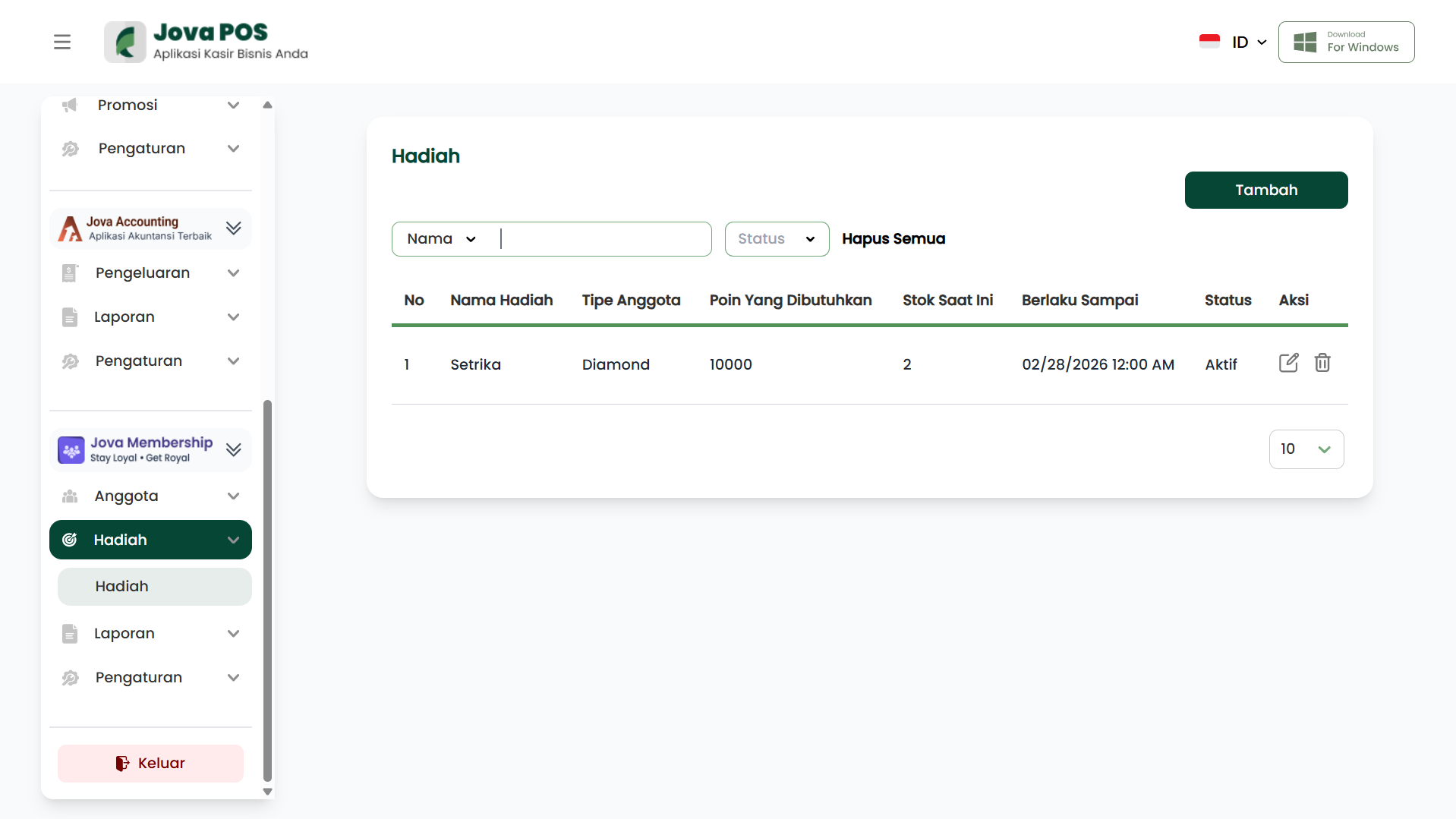
This page will display a list of available rewards, related reward information, and provide options to add, edit, or delete rewards as needed.
2. Viewing the Reward List
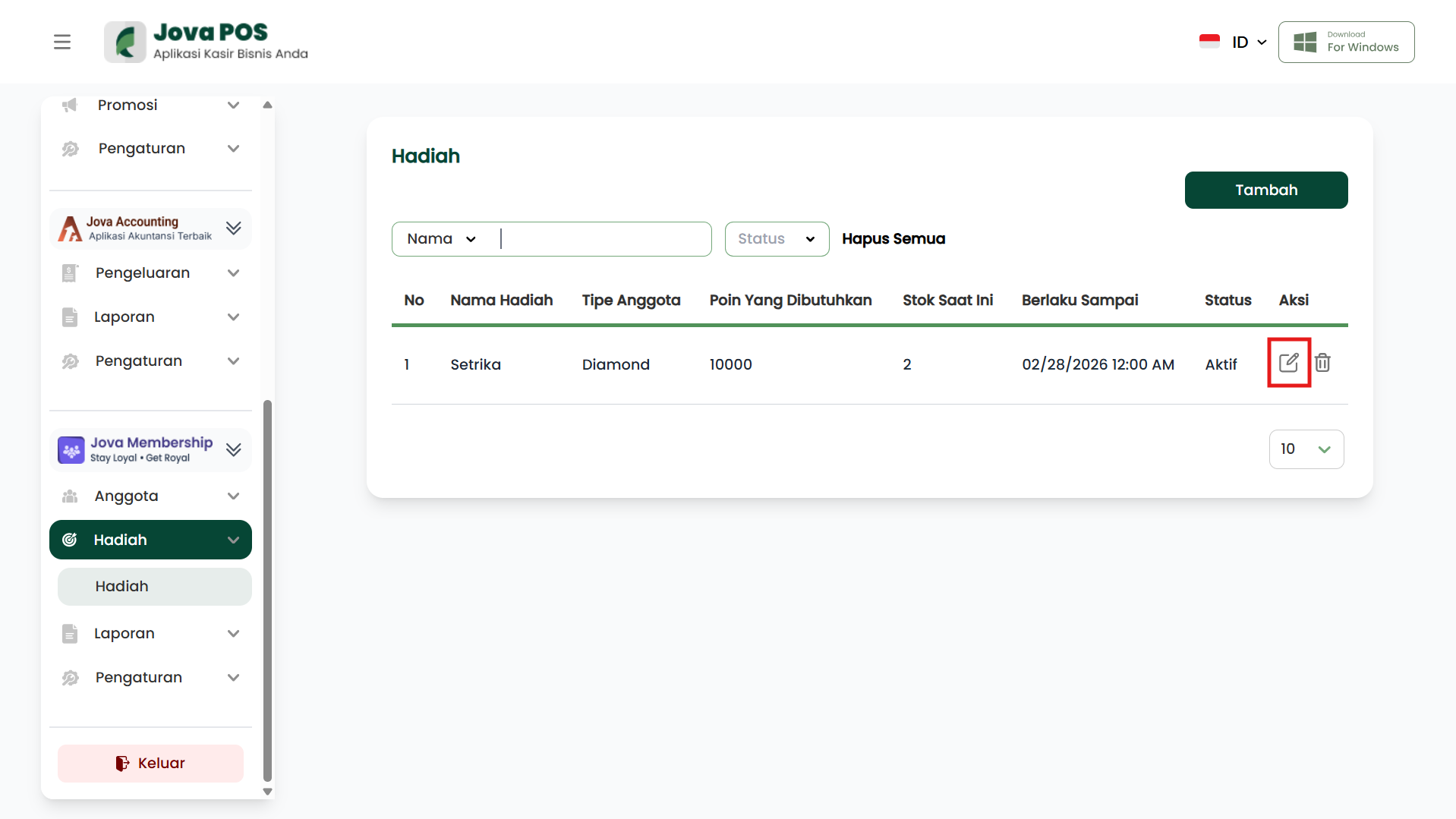
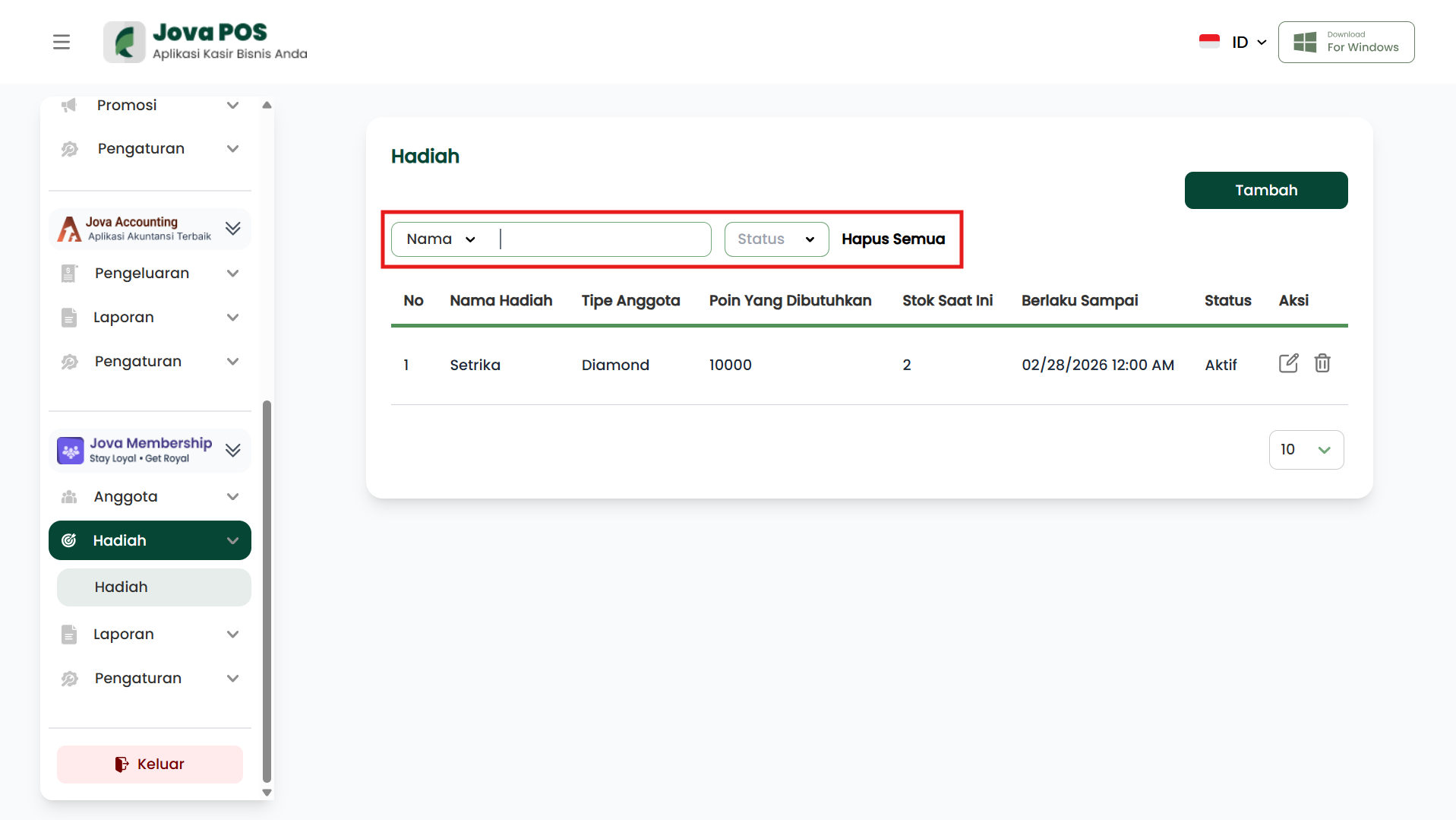
On the Rewards page, you can view the list of existing rewards. Each reward has clearly structured information. The columns displayed include:
- No: Reward serial number.
- Reward Name: The name of the reward that can be redeemed.
- Member Type: The member type eligible to redeem the reward (e.g.: Gold, Silver).
- Points Required: The number of points needed to redeem the reward.
- Stock: The available stock of the reward for redemption.
- Valid Until: The expiration date of the reward.
- Status: Reward status (active or inactive).
- Action: Options to edit or delete the reward.
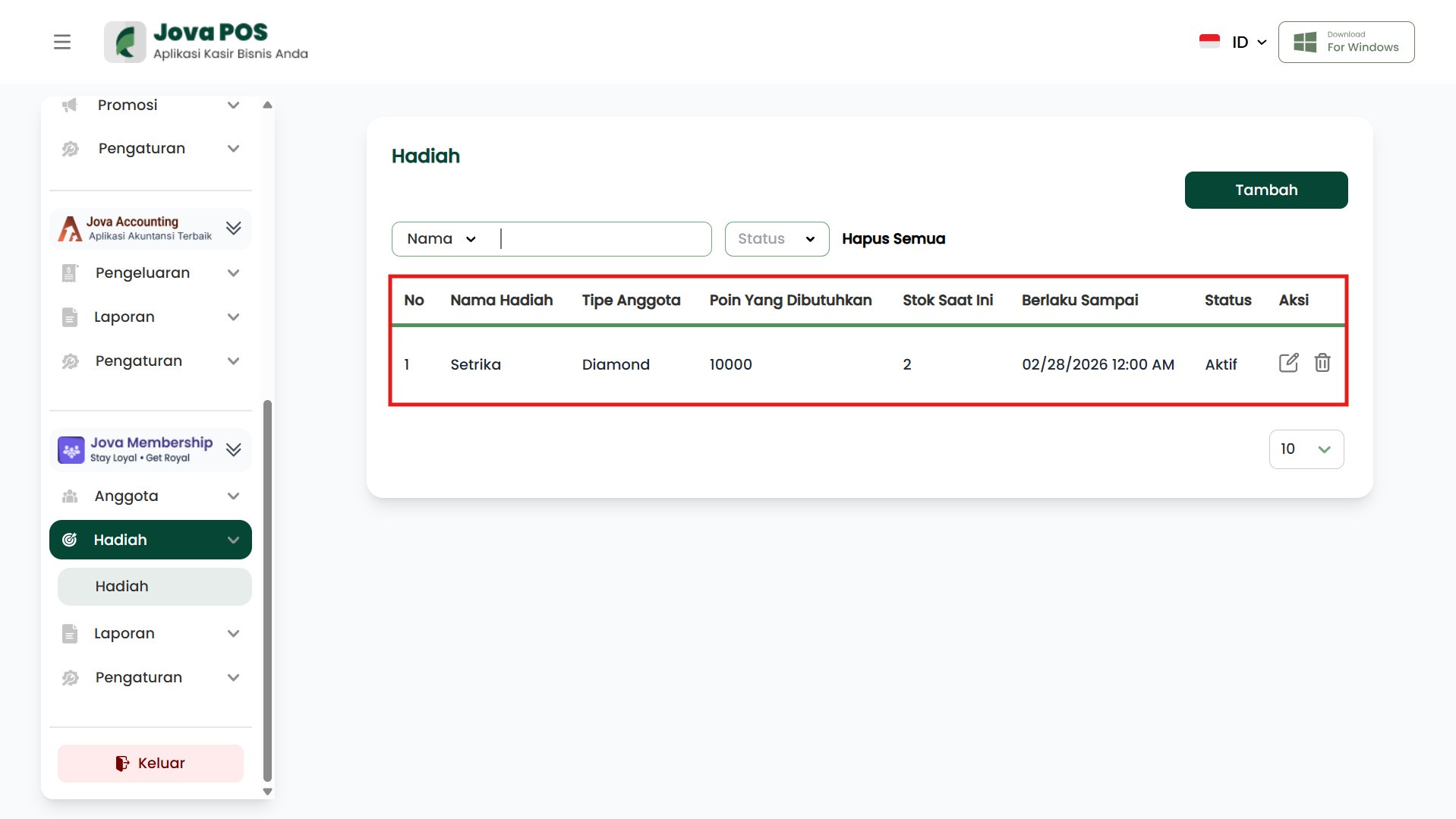
The function of this reward list is to make it easy for users to monitor available rewards and manage them quickly.
3. Adding, Editing, and Deleting Rewards
Adding a New Reward
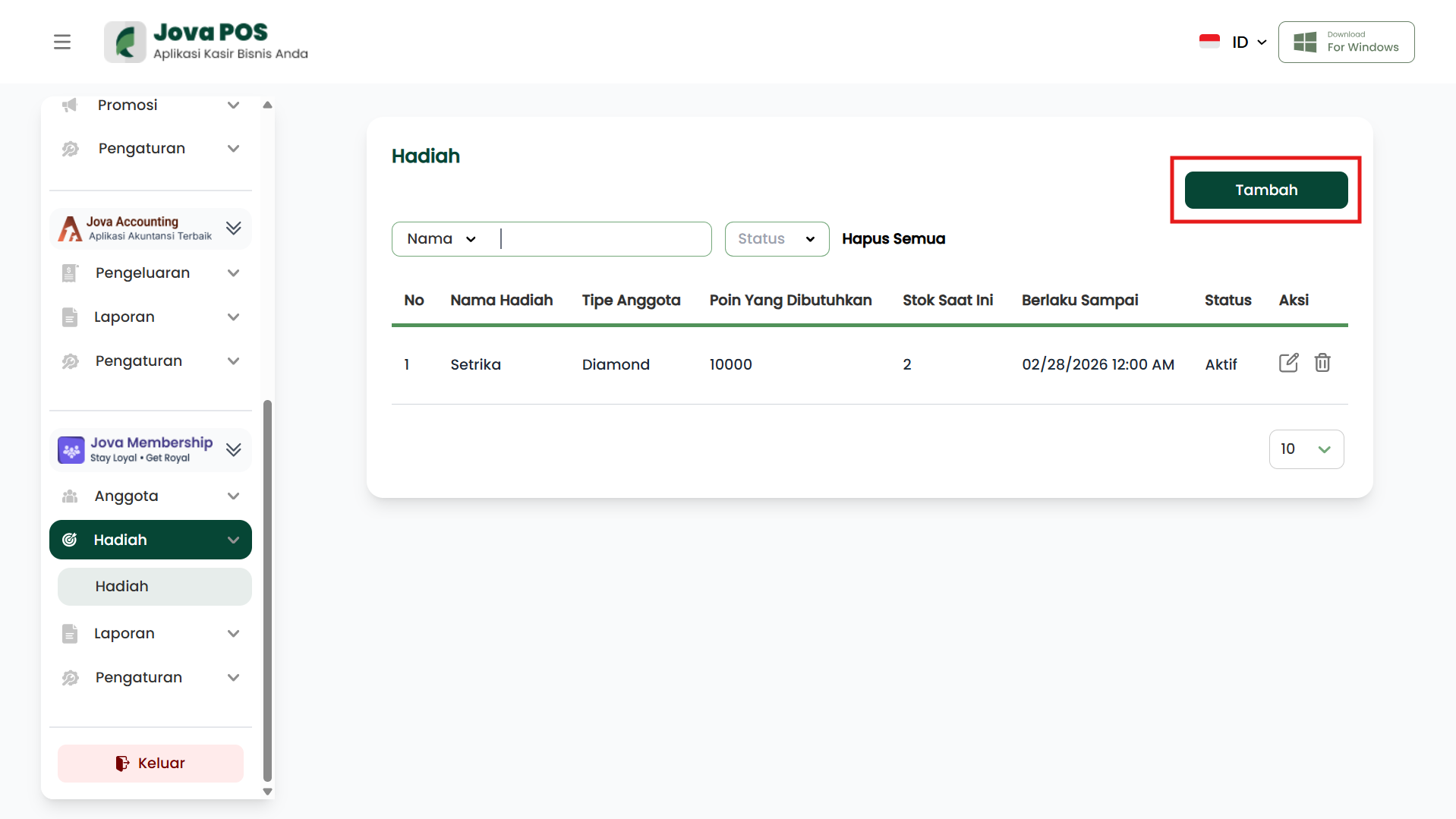
To add a new reward, follow these steps:
- Click the Add button at the top right corner of the Rewards page.
- Fill in the reward information to be added:
- Reward Name: The name of the reward to add (e.g.: Iron, Toaster).
- Member Type: Select the member type eligible to redeem the reward (e.g.: Diamond).
- Points Required: The number of points needed to obtain the reward.
- Stock: The available stock of the reward.
- Valid Until: The expiration date of the reward.
- Description: Additional description of the reward (optional).
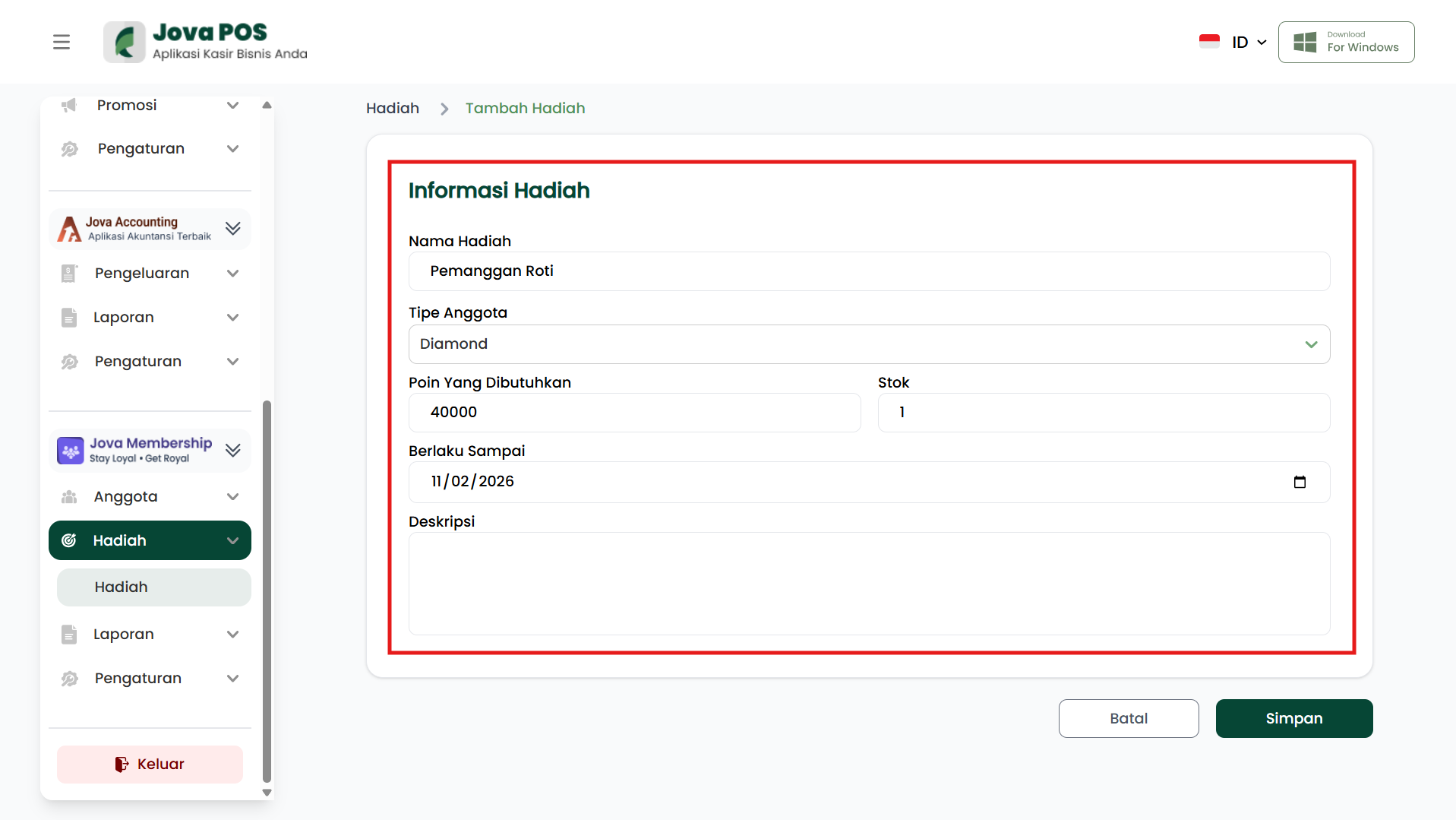
- Click Save to save the new reward data.
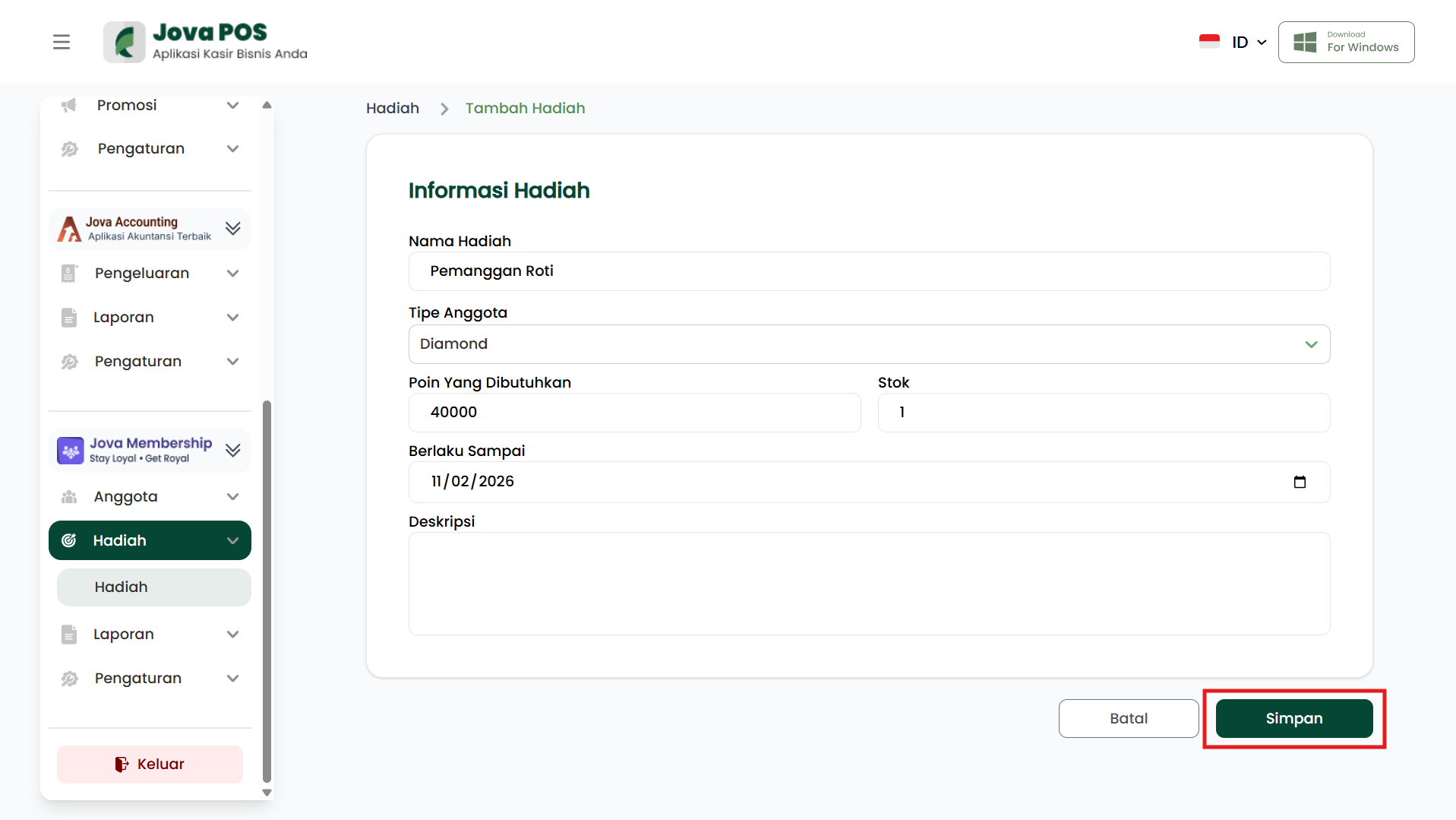
Editing a Reward
To edit an existing reward, follow these steps:
- On the Rewards page, find the reward to edit.
- Click the Edit button in the Action column to the right of the reward.
- Change the necessary information such as reward name, points required, stock, or description.
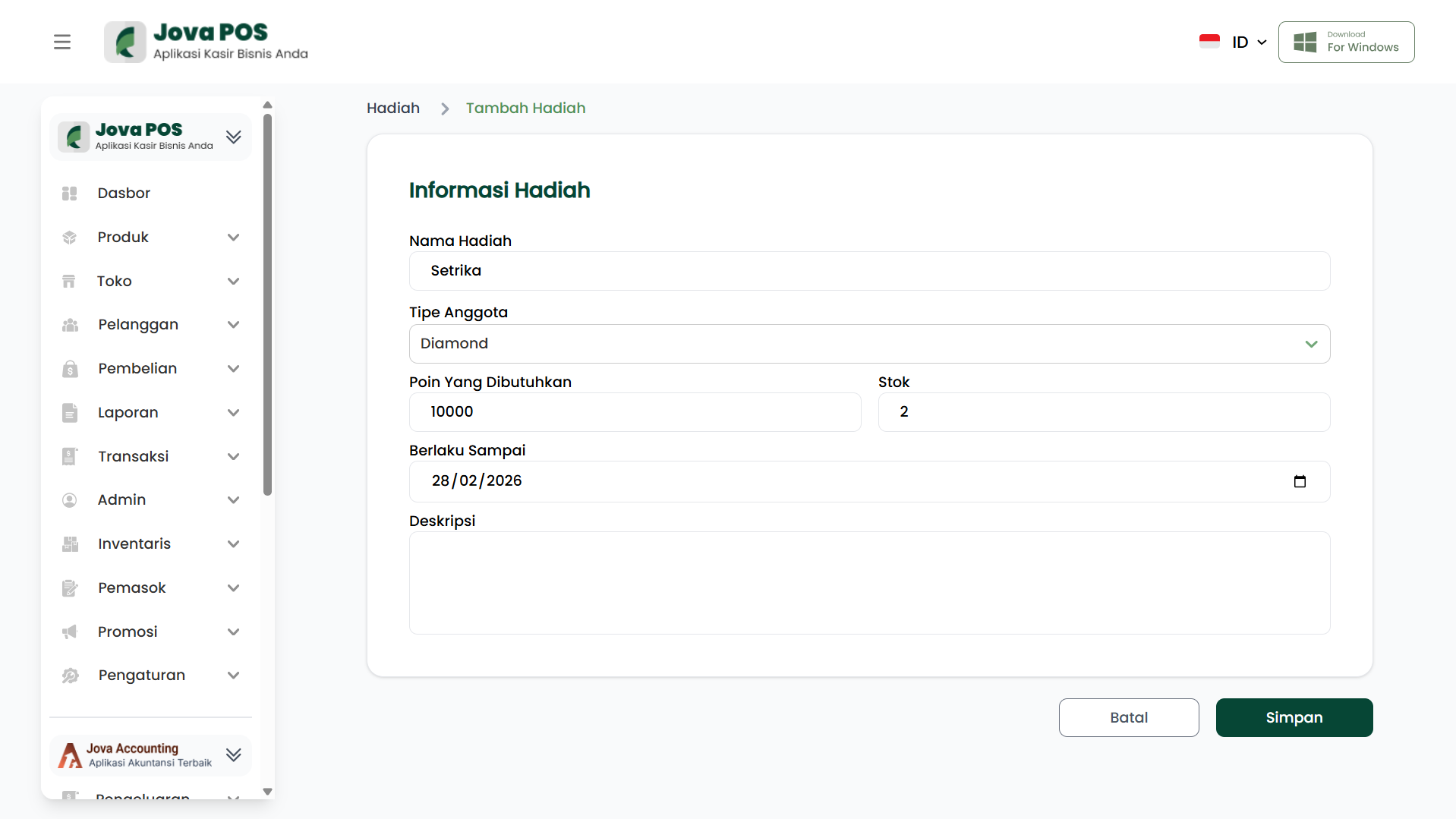
- Click Save to save the changes made.
Deleting a Reward
To delete a reward that is no longer needed, follow these steps:
- On the Rewards page, find the reward to delete.
- Click the Delete button in the Action column to the right of the reward.
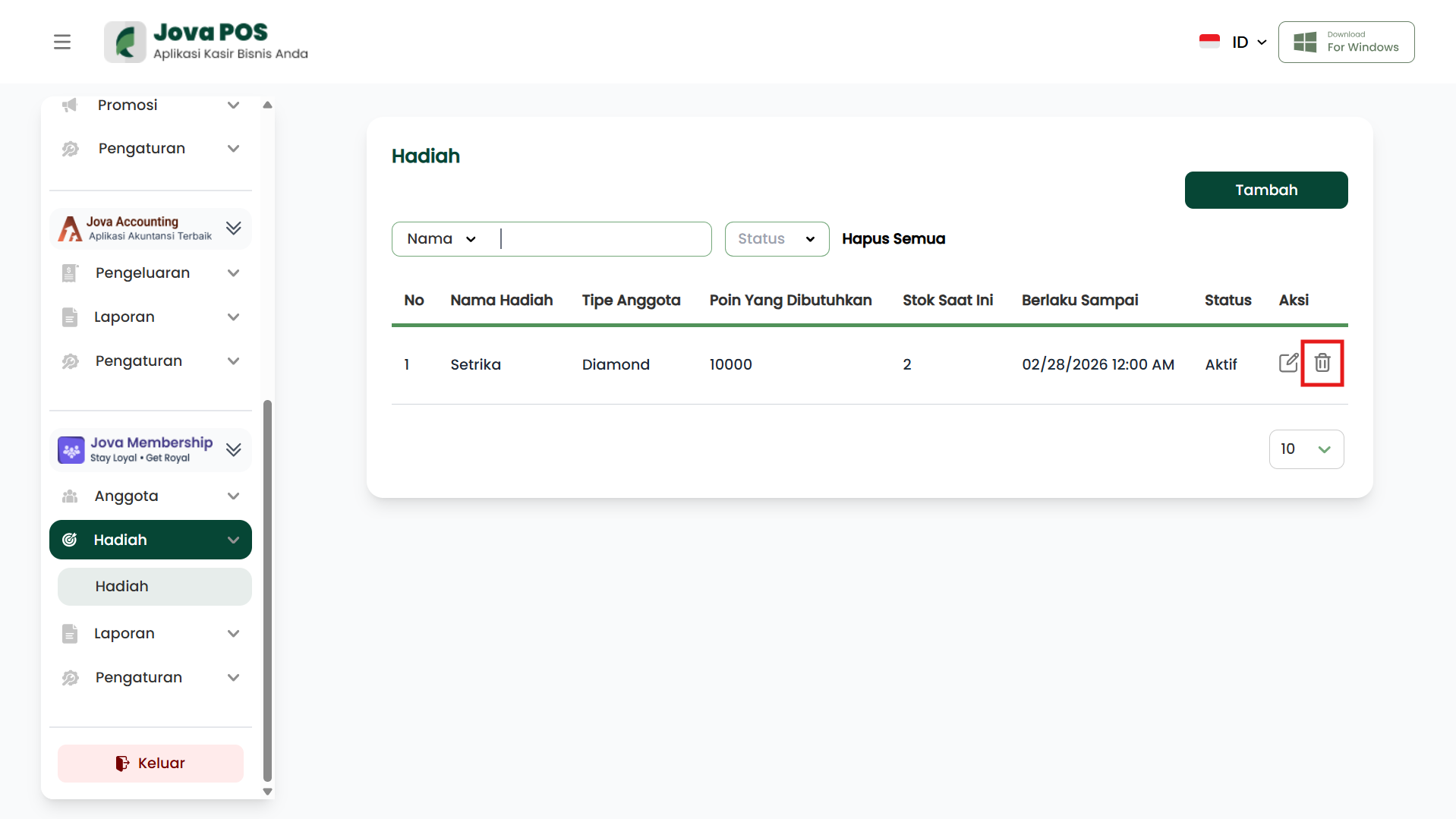
- Confirm the reward deletion. Deleted rewards cannot be recovered.
4. Filter and Search Rewards
To make it easier to find rewards on the Rewards page, you can use the search and filter features based on the following criteria:
- Reward Name: Search for rewards by reward name.
- Member Type: Filter rewards by eligible member type.
- Status: Filter rewards by status (active or inactive).
These search and filter features will help you find rewards more quickly and efficiently, especially if the available reward list is quite long.
Reward Usage Flow
Login
  ↓
Rewards Menu
  ↓
Add New Reward
  ↓
Monitor Available Rewards
  ↓
Edit or Delete Rewards (if needed)
  ↓
Done